Steps to Create a Biolink Page
To create a customized biolink page, let’s start with some essential steps:
1. Log in to Ai바이오링커

2. Create a New Biolink Page
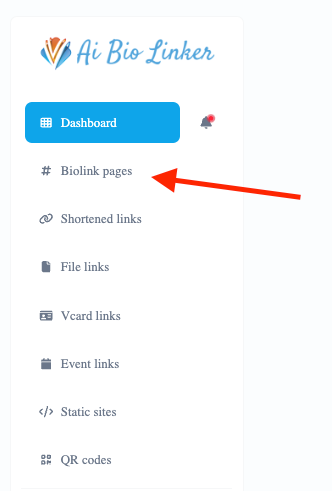
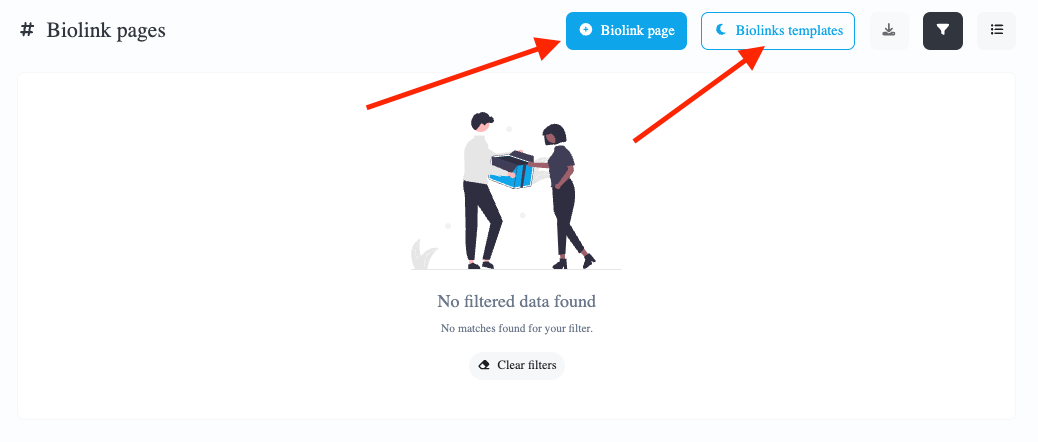
Once logged in, go to the dashboard and click on #Biolink Pages, then on the blue button “+Biolink Page” to create a page from scratch, or click on the white button “Biolink Templates” if you want to choose from one of the available templates. Enter a unique name for your page that reflects your brand or the content you intend to share.
Choose Styles and Design
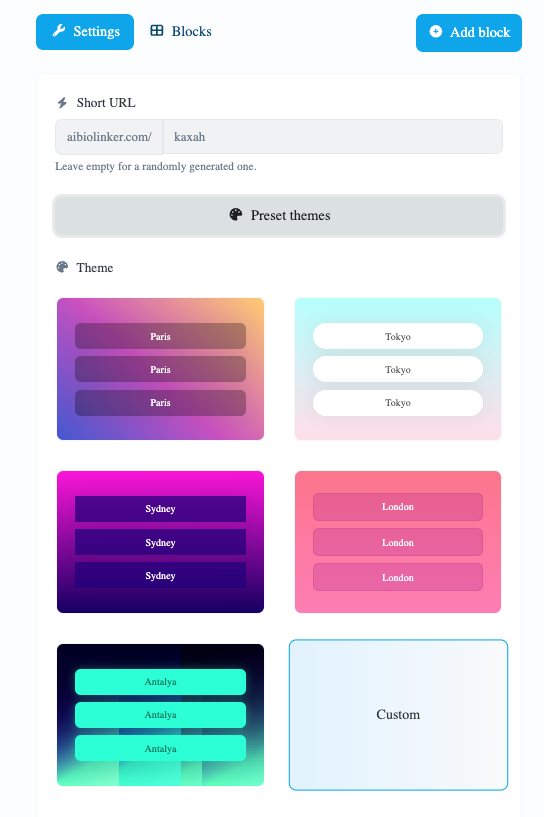
Once you have set up the basic structure of your biolink page, it is essential to customize the design to align with your brand in the “Settings” section. Here’s how:
1. Theme Selection
AiBioLinker offers a range of predefined templates you can choose to start. Navigate to the [Themes] section and select the one that best reflects your style. This is the perfect starting point to create a harmonious and professional look.
2. Color Customization ?
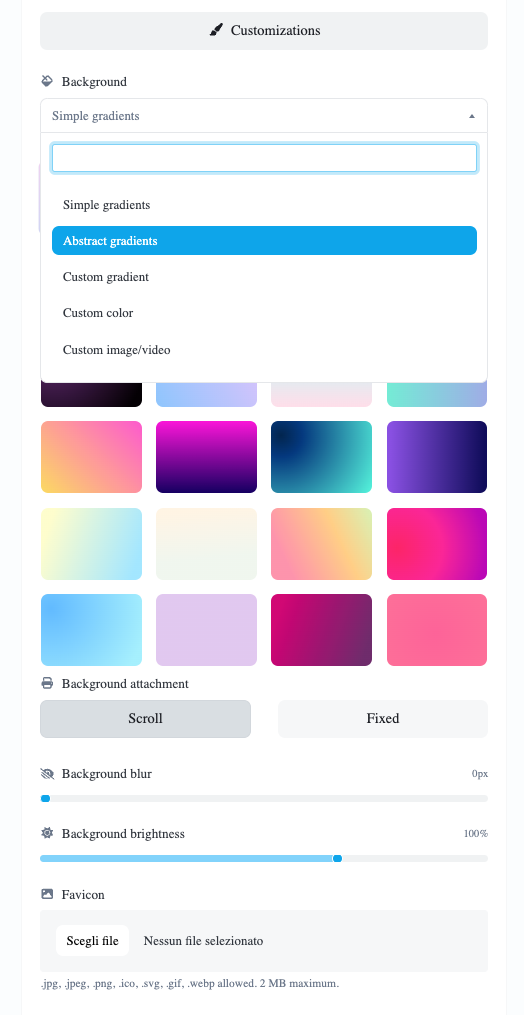
Choosing the right colors is crucial. In the [Color Options] section, you can set the colors for the background, text, and buttons. Use the colors that represent your brand to maintain visual consistency.
3. Add Images and Icons ?️
To make your biolink page more engaging, add relevant images and icons. This can include your brand logo, background images, or icons for buttons. Customize each element in the Customizations section.
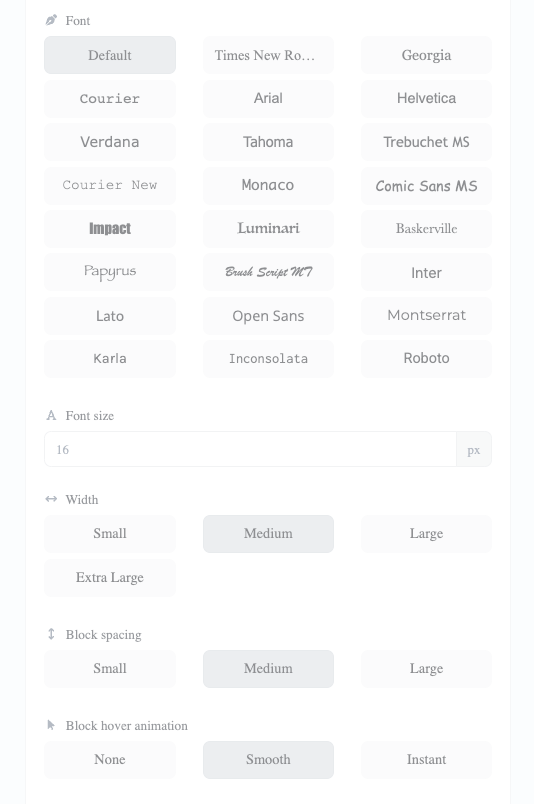
4. Typography
The choice of typography is another essential aspect of design. Go to the [Customizations] section and select fonts that reflect your style and are readable. This enhances consistency with your brand and the overall user experience.
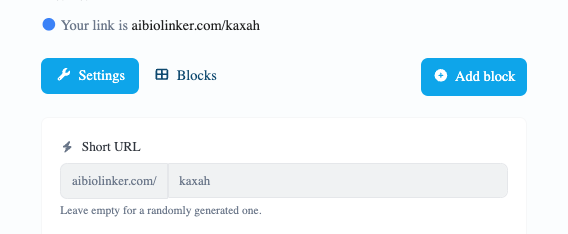
Once you have completed the basic “Settings,” you can add Blocks or modify the template blocks. Here’s how:
3. Add Blocks
The next step is to add the desired Blocks or modify those imported from the template. You can create your Biolink page with all the blocks available in your subscription plan by clicking on the “+Add Block” button.
5. Test the Page
Before publishing, it’s important to test your biolink page on different devices (desktop, tablet, and mobile) to ensure everything works correctly and that the design is responsive. Make any necessary adjustments to optimize the user experience.
By following these steps, you will be able to create a customized and visually consistent biolink page that effectively represents your brand.
 English
  Spanish
  German
  Portuguese
  French (France)
  French (Canada)
  Arabic
  Japanese
  Hindi
Hindi  Russian
  Indonesian
  Malay
Malay  Korean
  Tagalog
  Turkish
  Tamil
Tamil  Chinese (China)
  Chinese (Hong Kong)
  Chinese (Taiwan)
  Italian
  Greek
Greek  Dutch
Dutch